Everything you can do here
BiblioRata is a quiet place for the Word. Read each day, study the original words, and put Scripture on the big screen on Sunday. This guide walks you through it, one step at a time.
Getting started
Where things are, what an account is for, and how the app keeps working with no data.
Five tabs along the bottom
In the BiblioRata app the tabs are Home, Bible, Search, Plans and More. Home is your day. Bible opens the reader where you left off. Search finds any word. Plans keeps your reading plans. More holds everything else: offline Bibles, settings, this guide.
On a phone's web browser you see Home · Bible · Search · More (plans are under More). On a laptop the same things sit in the bar at the top.
Read freely — sign up to save
You can read, search, compare and look up cross-references without an account. To keep things — notes, highlights, your studies, your service queue and songs — make a free account with your email.
Anything you did before signing up comes with you into the new account. Nothing is lost.
It works with no data
Look for the small dot in the top corner. Green means you are online. Red means you are offline — and that is fine.
The first time you open the app, the King James Bible downloads by itself. After that you can read and search it with no signal. Pages you have opened once (Home, Today, Plans, Search, the Glossary, this guide) open offline too. Notes and a finished Today are kept on your phone and sync when you are back online.
Want more versions offline? Go to More → Offline Bibles.
Your daily rhythm
Five quiet minutes a day, a word of the faith, and plans that carry you through the Bible.
Begin today
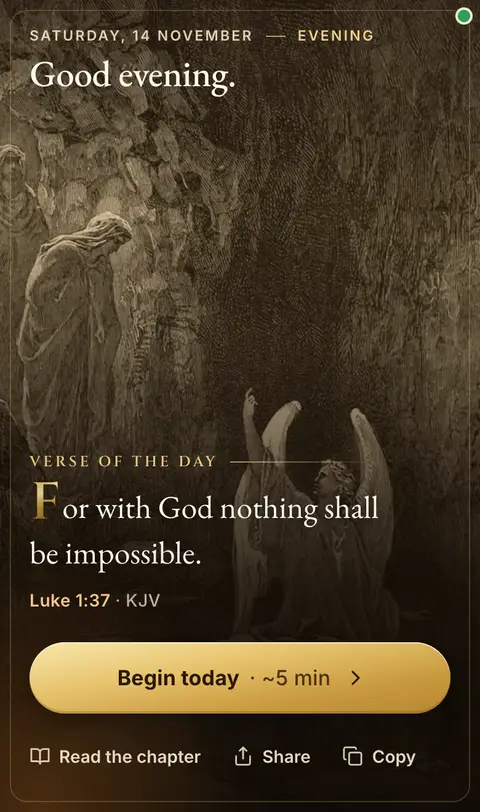
Home opens with the verse of the day over a classic Bible painting. Press Begin today. It takes about five minutes.
Home also follows the time of day: a soft dawn light in the morning, clear light at midday and candlelight in the evening, with a greeting to match.
Finish Today and the small ring at the top counts your streak — the days in a row you have finished.
Six short steps
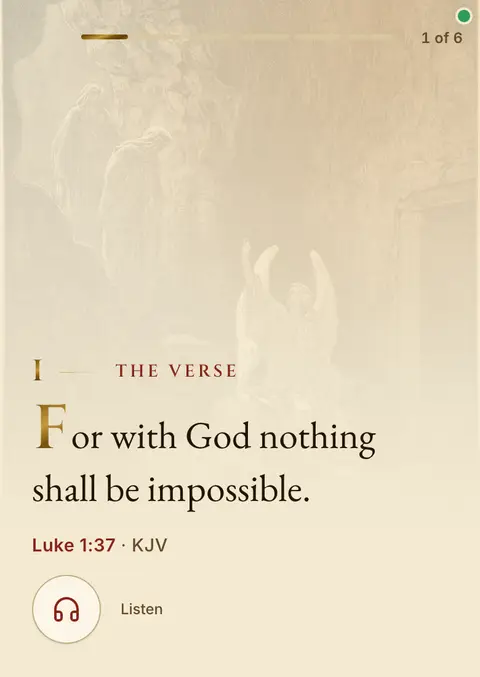
- The verse. Read it, or tap Listen to hear it.
- The passage. The verses around it.
- A reflection. A short thought on the day’s word.
- A word of the faith. One word from the Glossary.
- A prayer.
- Amen. Your day is marked done.
Use Next and Back at the bottom. It works offline too.
Continue, For you, and reading plans
Further down Home, Continue brings back what you were reading. For you suggests a next step from what you actually read. The Word for today has the day’s passage with a short reflection.
Reading plans pace a book, the New Testament, the year, or your own path. Tick each day done and the ring fills up.
The Glossary of the Faith
Grace, faith, redemption, righteousness — the big words of the faith, explained in plain English. Each one shows the Greek or Hebrew word behind it, what it means, a line for new believers, and the key verses to read.
On a phone, Home has a slider of these words that moves by itself; tap one to open it. See them all at /faith, from A to Z.

From fellow readers
Home shows short notes from people who read with BiblioRata. Every few seconds one breaks like glass to show the next. Has it helped you? Tap Share how BiblioRata helps you and add yours.
Reading and studying
The reader, search, and the study tools that open beside the text.
The Bible reader
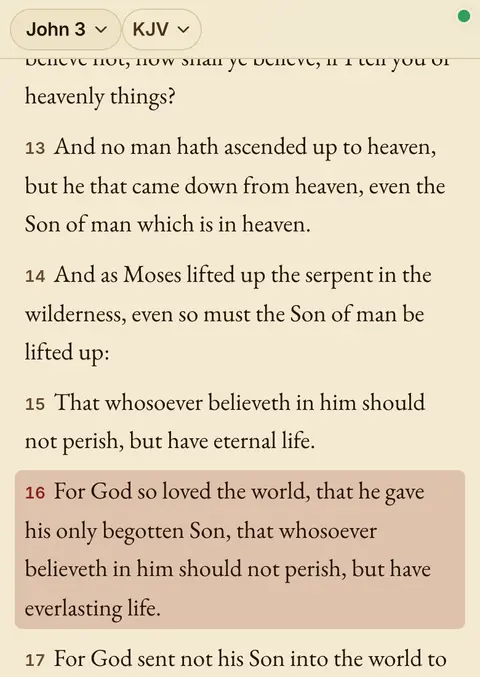
One verse per line, in large, clear type. Tap the book name (John 3 ▾) to pick a book and chapter, or type a reference. Tap the version (KJV ▾) to switch between KJV, ASV, BSB, WEB and more.
Tap Aa for text size, the theme (light, sepia, dark or auto) and the verse-per-line layout. The next chapter is at the end of each chapter.
Tap any verse for its tools: highlight, note, compare, copy, share, cross-references, word study, commentary and the Rabbi.
Search the whole Bible
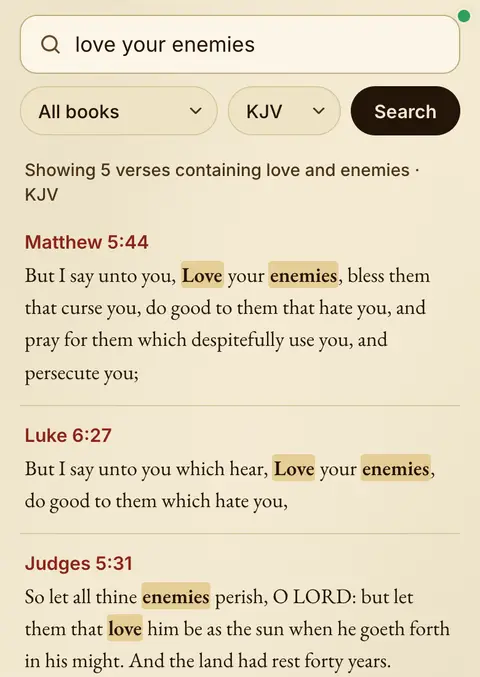
Type a word or two. Verses that hold all your words come first, with the words highlighted. Choose one book or a version if you like.
Tap a result and the whole chapter opens at that verse, so you read it in context. Your recent searches stay on your phone, and search works offline in a downloaded Bible.
Type a reference the way you say it
The reader understands the natural forms — no rigid syntax to learn.
Up to four passages, side by side
Compare the same verse across translations, or set different verses next to each other. Tap Compare to open a second pane, and add up to four. Word diff marks where the translations differ.
Cross-references, one tap away
Tap a verse, then Cross-references. You get the Treasury of Scripture Knowledge, strongest links first. Each one opens its whole chapter at the verse.
Study the original words
Tap a verse and choose Word study. In the King James text each word shows its Hebrew or Greek root: the Strong’s number, how to say it, what it means, and where else it is used. Turn on Word study (Strong’s, KJV) under Aa to see the roots right in the text.
Ask the AI Rabbi
Select a phrase or tap a verse and choose Rabbi. It reads the whole chapter and the verse's cross-references before answering, and stays under strict rules of sound interpretation: context first, Scripture interprets Scripture, never beyond what is written. It cites references — the verse wording always comes from our own translations, never the model.
God's love is the ground and motive of the gospel — the gift of the Son flows from it.
“World” here speaks of its scope and wickedness, not of universal salvation.
Find a verse from a thought
Describe a half-remembered idea and the assistant returns matching passages, every one checked against our text. Open it from More → Find a verse by idea.
And at hand whenever you need them
Preaching and the big screen
For pastors and church media teams. It all works without Wi-Fi once you are ready.
Present — even offline
Tap Preach in the reader to put the passage on the projector, verse by verse, in large type that fits the screen. The reference (“John 3:16 · KJV”) shows so everyone knows where you are.
No signal? Present offline (on Home and in More) opens a ready study straight away. Type a reference in the Go box and it shows.
The operator console
On a laptop, Preach opens a console like EasyWorship. On the left is the Service — your order of items. In the middle, Preview (what’s next) and Live (what the people see). Below sits a library: Scriptures, Songs, Presentations, Pictures, Word study and Looks.
Click an item to preview it. Press L or Go live to put it on the screen. Press F for Focus — the full slide.
Phones follow along
Press Go Live and show the QR code. People scan it and the Scripture follows the pulpit on their phones — no account needed. When you end, they get “tonight’s scriptures” to keep reading.
⌗ Stage opens a screen for the preacher: the next verse big, plus a clock. ☎ Remote pairs your phone by a secret QR so you can move the slides from anywhere in the room.
Looks and live buttons
✦ Looks gives you thirteen slide designs — Royal Blue, Stained Glass, Night Sky, Dawn and more — or your own picture, video and church logo.
The live buttons: Black (a black screen), Clear (hide the words, keep the background), Logo, a countdown Timer and an Alert across the bottom.
The song bank
Pick a hymn from the built-in public-domain hymnal or one of your own songs. Paste words with labels like [Verse 1] and [Chorus], set the order (“V1 C V2 C”), and each part becomes a slide. The labels are only for you; the screen shows just the words.
Tap Save to my songs so you never type it again. Group songs into collections. It all works offline.
Slides for every part of the service
The tools above the Service list add:
- Scriptures — several verses on one slide, each in its own version.
- Presentation — a PDF or pictures. They stay on your device.
- Seminar — title, points, picture and quote slides, with speaker notes.
- Root word — press W to show the Hebrew or Greek word behind the verse on screen: “the Greek word here is agapē…”
This Sunday, ready ahead of time
Turn on Pastor mode in More and Home leads with This Sunday: your service, its order, what still needs doing, and three buttons — Open service, Present, Get ready.
Get ready for Sunday saves the Bibles, passages, songs and screens on this device, so you can preach with no Wi-Fi.
Templates start a new service from last week’s shape, and Order gives you the order of service to share on WhatsApp or print.
More help in the pulpit
Keyboard shortcuts
For laptops. In preach mode, press ? any time to see them all.
While reading
- ⌘/Ctrl+K or /
- Pick a passage
- 1–4
- Choose a pane
- ⌘/Ctrl+S
- Save your notes now
- ⌘/Ctrl+D
- Copy the reference into the next empty pane
- X
- Open the tools for the chosen verse
- Esc
- Close a drawer
While preaching
- → Space / ←
- Next / previous verse
- G or /
- Go to a reference or search
- L
- Go live with what’s in Preview
- N
- Preview the next item
- F
- Console ⇄ Focus
- B / H
- Back / home to the teaching text
- 1–3
- Verses per slide
- W
- Root word of the verse on screen
- . C O
- Black · Clear · Logo
- T A
- Timer · Alert
- Q
- Into the Service list
- ?
- All the shortcuts